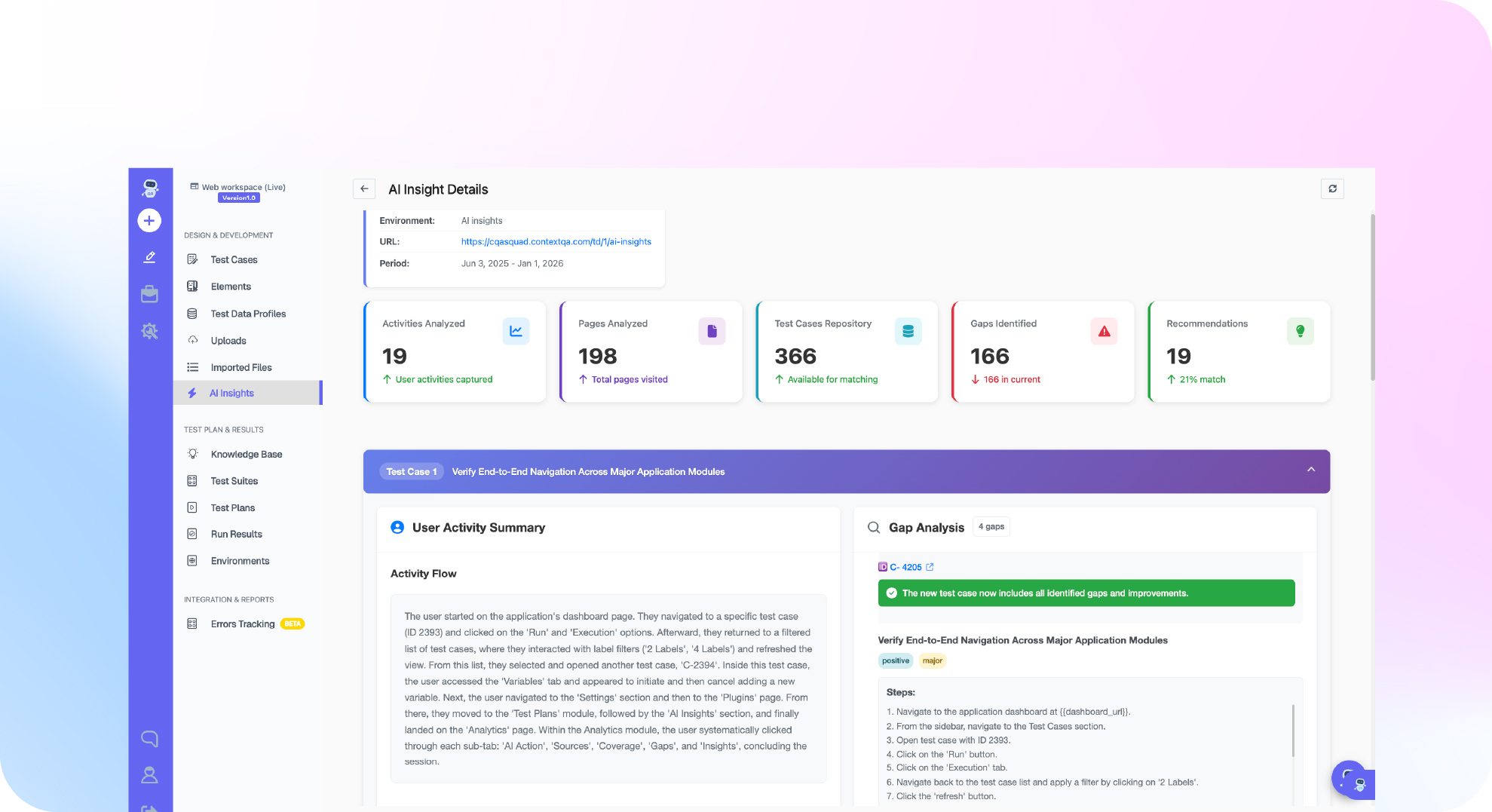

TL;DR: Vision AI mobile app testing runs and checks Android and iOS apps based on what appears on screen and on plain English intent, instead of relying only on hard coded element IDs. In ContextQA, the autonomous quality engineer, you upload an APK or IPA and describe the flow with taps, swipes and expected results. Then you pick a device and build and select Generate & Execute Test Case. Self healing repairs broken locators, and each run returns screenshots, logs and video when available.
Teams looking at vision ai mobile app testing for ios & android usually have the same problem: locator scripts that break on every UI change, and flaky gesture steps nobody trusts in CI. This guide shows how to upload an .apk or .ipa, describe a flow in plain English, pick a device and app build, and review the evidence from each ContextQA mobile run.
Quick answers
What do I need before running a mobile test in ContextQA? You need a test installable build: an .apk for Android or an .ipa for iOS. Under Uploads, create a folder with the APK or IPA file type. The type locks once the folder exists. Add the file, then wait for Completed status before testing (Uploading Apps).
How should my team write prompts so generated mobile tests run reliably? Name the starting screen, list the actions in order, use each control's visible label, and end with at least one expected result you can check. Use mobile verbs like tap, swipe, scroll and long press. Keep one goal per test and use fictional test accounts (Creating Mobile Tests).
How do mobile tests fit into regression runs? After you review a generated test, add it to a Mobile test suite and add that suite to a test plan for repeat or scheduled runs. Each run records status, step details, screenshots, logs and available video, so engineers can see which action failed on which device and build (Mobile Testing Overview).
What is vision ai mobile app testing for ios & android?
Vision AI mobile app testing is an automation approach where a model reads the rendered screen the way a person does. It finds controls by their visible label and appearance, performs taps and swipes, and checks the outcome. It does not depend only on element IDs or XPath locators in the app's view hierarchy.
How it differs from locator based automation. Traditional scripts tie each step to an accessibility id, a resource-id or an XPath expression. When a developer renames an ID or moves a component, the step fails even though the screen looks the same. Steps aimed at what users see, such as the "Sign in" button, avoid this.
What to check in any tool:
- Real platform coverage: Android
.apkand iOS.ipabuilds run on devices you choose. - Reviewable steps: You can edit generated actions before they become regression tests.
- Evidence: Each run produces screenshots, logs and video.
What can vision based mobile testing do on iOS and Android?
On iOS and Android, vision based testing can generate steps from plain English, perform touch gestures, check what appears on screen and keep working when the layout shifts between builds. The main benefit is less upkeep. Tests describe what the user intends and what they should see, not the internal structure of each platform's view tree.
- Plain English authoring: In ContextQA, open AI Assistance, select Mobile and describe the flow, for example "Tap Get started and verify that the Sign in screen opens." Then review the steps it generates (Creating Mobile Tests).
- Gesture coverage: For each tap, swipe, scroll, long press, pinch or zoom, name the target and a visible expected result.
- Self healing: ContextQA automatically repairs broken selectors and locators when the UI changes, which removes a common cause of flaky failures after a redesign (AI based self healing).
- Reproducible runs: Each run records the platform, the device and the uploaded
.apkor.ipabuild, so a failure can be traced to a specific configuration.

Why does cross platform mobile testing matter in 2026?
Cross platform mobile testing matters because most teams ship each release to two platforms that draw the same screen differently. In ContextQA, the same workflow sequence applies to both platforms: for iOS you select IPA and iOS instead of APK and Android, then choose a compatible device and app build (Tutorial).
You can't skip either platform. StatCounter puts Android at roughly 70% of worldwide mobile OS share and iOS close to 30% (StatCounter Global Stats, 2025). In the United States, iOS holds more than half the market (StatCounter Global Stats, 2025).
Where tests run changes what they catch:
- Emulators and simulators: These are fast for early smoke checks, but they miss real touch latency, device maker skins and memory pressure.
- Real devices: These catch the gesture and rendering failures that users actually report.
No code authoring makes this practical for QA teams. The ContextQA platform has a no code UI and a no code recorder, so testers without coding skills can write and run mobile tests.
How does AI driven mobile testing work step by step?
AI driven mobile testing starts with a plain English description of a user flow. The AI turns that description into reviewable test steps. It runs those steps on the device you select, against your uploaded build, and records screenshots, logs and video when available. In ContextQA, the workflow has five steps:
- Upload the build. Open Uploads, create a folder, set File Type to APK or IPA, and add the file. Start testing only after the status shows Completed (Uploading Apps).
- Describe the flow. Go to Test Cases → New Test Case → AI Assistance and select Mobile. Write the scenario using visible labels and gestures, and include at least one expected result.
- Choose platform, device and build. Check the Parallel and Queued capacity indicators. Pick Android or iOS, a compatible device and the app build, then select Generate & Execute Test Case (Tutorial).
- Review the evidence. Check the status of each step along with the screenshots, logs and any recorded video.
- Organize for regression. Group the reviewed cases into a Mobile suite and add it to a plan. The platform integrates with Jenkins, GitHub Actions and other CI/CD tools, and reports to Jira and Slack.
Pricing is quoted after a demo.
Which approach fits your team best?
Pick the approach that matches where your mobile tests break. If selectors keep failing across React Native or Flutter builds, vision AI helps most. If your app has stable native accessibility IDs, scripted locators still work. A practical middle path is a hybrid: AI generates the flows, and a person reviews the evidence before a test joins regression.
- Scripted locator frameworks: These suit teams with stable accessibility IDs and SDETs to maintain them. Every UI refactor means updating selectors by hand.
- Vision AI only: This suits React Native and Flutter apps, where the rendered view hierarchy (the element tree a test tool reads) often doesn't match the source widgets. The risks are real. A model can misread dynamic content such as timestamps, carousels and animations. Screenshots sent to a model can also expose PII (personally identifiable information), so use fictional test accounts only.
- Hybrid with reviewable evidence: In ContextQA you describe the flow in plain English, pick a device and an uploaded build, and review the generated steps, screenshots, logs and video before you promote the test (Creating Mobile Tests).
Recommendation: Go hybrid, and trust a run only after its evidence shows that each step actually happened.
How does ContextQA handle iOS and Android app testing?
ContextQA tests iOS and Android apps by running plain English scenarios against a build you upload, on a device you pick. You upload an .apk or .ipa, describe the flow with AI Assistance, and choose the platform, device and build. Then you review the screenshots, logs and available recordings. Self healing repairs broken locators when the UI changes.
The documented workflow (Mobile Testing Overview):
- Open Uploads, select Create Folder and set File Type to APK or IPA. Wait for Completed status.
- Go to Test Cases → New Test Case → AI Assistance and select Mobile.
- Describe the gestures and the expected result: "Swipe the carousel left and verify the pagination indicator changes."
- Select Generate & Execute Test Case.
Migrating from script based frameworks: Start with one flow you already have a script for and rewrite its steps as a prompt. Run both versions and compare the evidence. Then group the tests that pass into a Mobile suite and a plan.
If your mobile tests break whenever the iOS or Android UI changes, book a demo to see ContextQA's self healing tests repair broken locators automatically.

What should you do now to get started?
To get started, pick one important user journey and get a test installable APK or IPA from your mobile engineering team. Run one AI assisted smoke test on one device, then review the evidence before you add more tests. Each step below follows the documented ContextQA workflow and ends with something you can check.
- Ask mobile engineering for an installable
.apkor.ipaand the supported OS versions. - In Uploads, select Create Folder and choose APK or IPA (docs).
- Check that Status reads Completed and Folder Size is above zero.
- Open Test Cases → New Test Case → AI Assistance and select Mobile.
- Write a prompt that names the starting screen, the control labels, the gestures (
tap,swipe,long press) and one expected result. - Select the platform, device and build, then select Generate & Execute Test Case.
- Review the step details, screenshots, logs and any video.
- Add the passing tests to a Mobile suite and a test plan (tutorial).
Bottom line
Vision ai mobile app testing for ios & android works when you have three things: an explicit build, a compatible device, and prompts that pair every tap or swipe with a result you can see. The ContextQA platform covers all three. Review each run's evidence before you promote a test, and pair this functional coverage with security testing.
Sources
The mobile OS market share figures come from StatCounter Global Stats, 2025. The ContextQA workflow steps, settings, screen names and status values come from the ContextQA learning center pages listed below.